Guide 04
How to Update Restaurant Hours and Holiday Hours
Accurate hours prevent guests arriving when the kitchen is closed. Regular hours and holiday hours can be updated separately.
Google's interface may change over time. The wording or position of some buttons may look slightly different on your account.
-
Step 1
Set the regular weekly hours
Open the restaurant's Google Business Profile and find Hours. Enter the normal weekly hours, including days when the restaurant is closed.
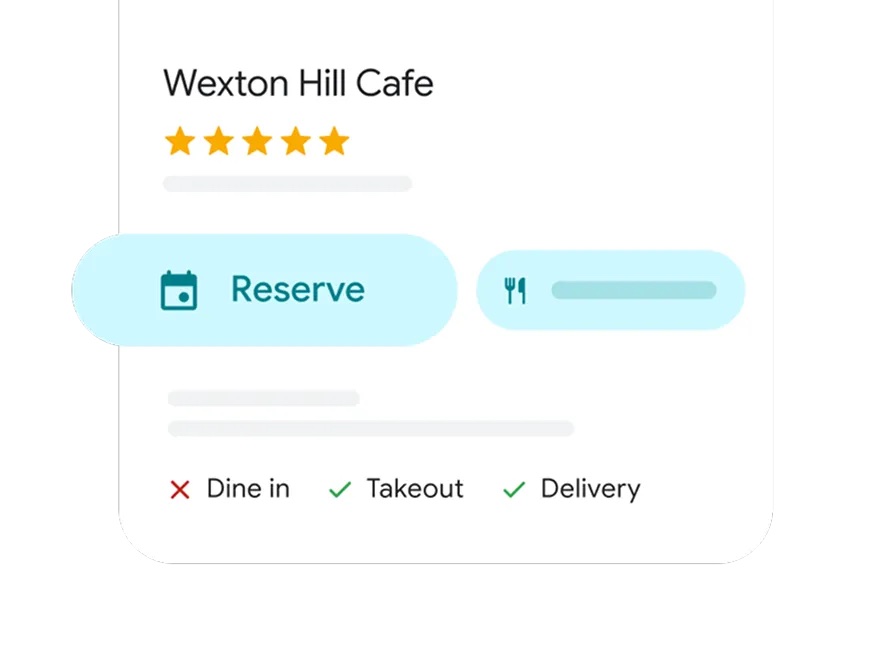
Official Google example Guests use the listing to decide whether they can visit, take away or book. -
Step 2
Add holiday or special hours
Add special or holiday hours for dates that change the usual schedule, such as public holidays, private events or seasonal closures. These extra hours should not replace the regular week unless the change is permanent.
-
Step 3
Confirm the hours guests will see
Save the update, then search the restaurant on Google Maps and confirm the hours guests will see. If the restaurant has a website, keep the same hours there so the two sources do not disagree.
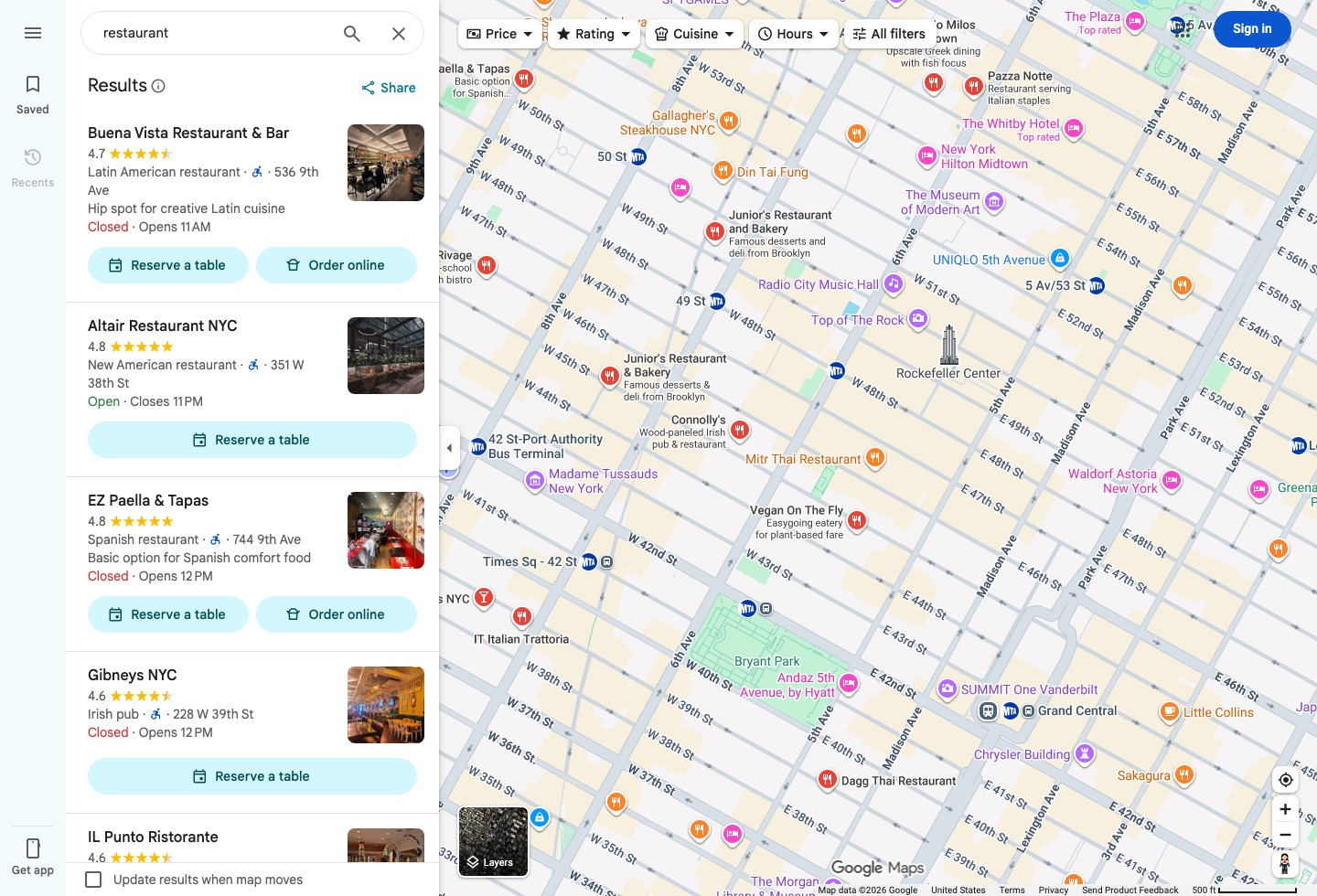
Google Maps interface Confirm the hours shown to guests on Google.
A short habit that prevents confusion
Update Google and the restaurant website together whenever hours change. If you are still claiming the listing, finish that first so the hours you enter actually stay on the profile.
Claim the Google profile Back to all guides
Google and Google Business Profile are trademarks of Google LLC. haohacstudio is an independent studio and is not affiliated with Google.