Guide 03
How to Add Your Website and Menu to Google
When the official website and menu are connected, guests can move from Google Maps to the right restaurant information instead of an old or incomplete listing.
Google's interface may change over time. The wording or position of some buttons may look slightly different on your account.
-
Step 1
Open the website field
Open the restaurant's Google Business Profile. Find the website field and enter the official restaurant website address. Use the final public URL, not a draft page or a social-media profile.
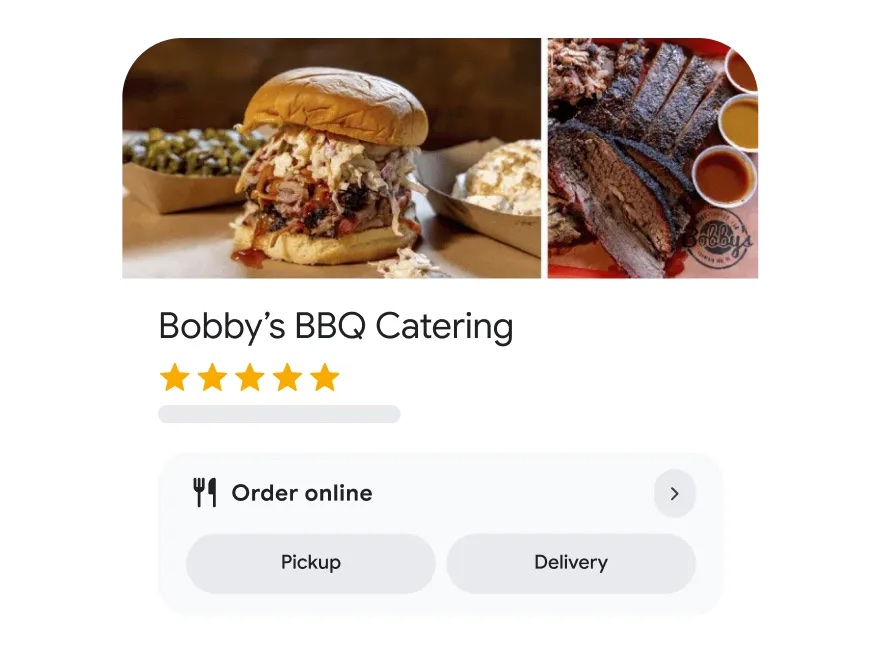
Official Google example After the website is connected, guests can move from the listing to the right restaurant page. -
Step 2
Add the menu
Add the menu in the way Google offers for your listing. That may be a link to the menu page on your website, or menu items entered in the profile. Choose the option that stays easiest to keep accurate.
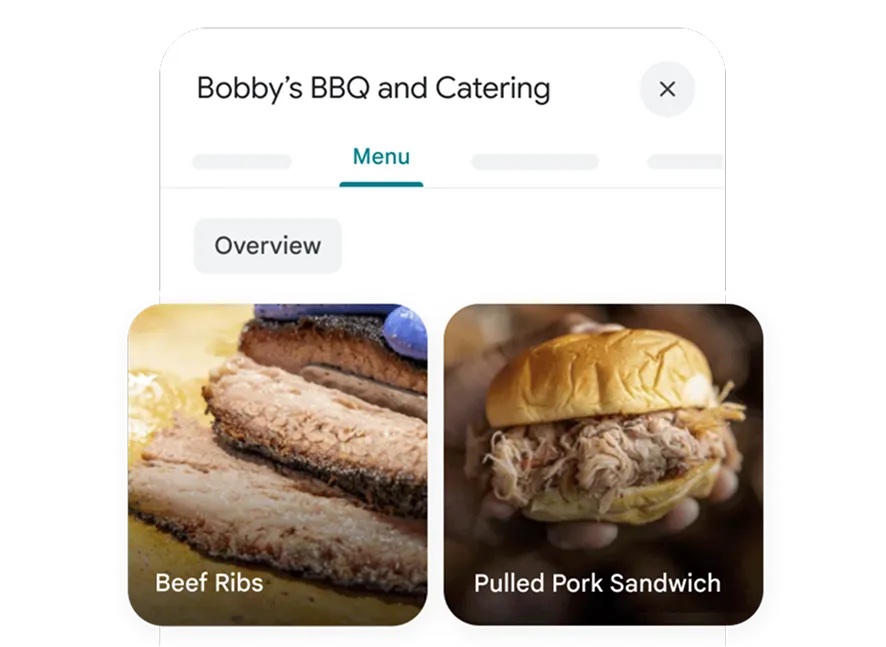
Official Google example A menu on the profile helps guests see dishes before they visit. -
Step 3
Check the listing as a guest
Save the changes, then search the restaurant on Google and open the listing as a guest would. Check that the website button and menu information point to the current restaurant pages.
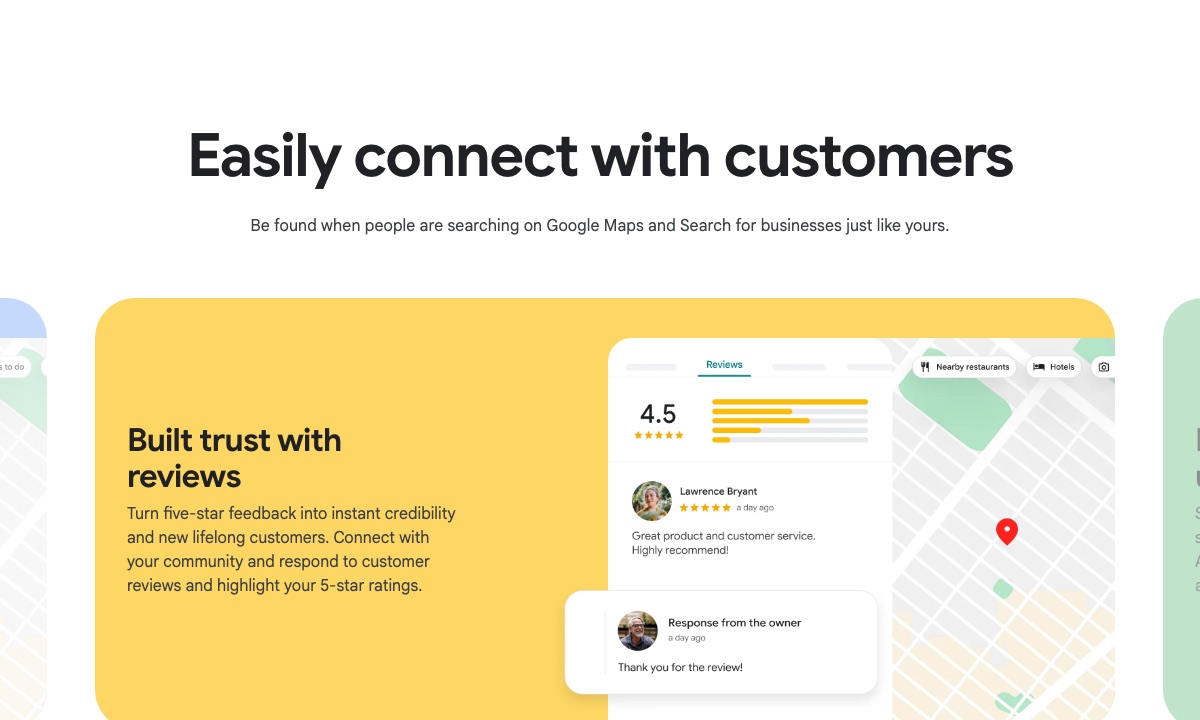
Official Google example After saving, check that guests can still find the restaurant clearly.
Keep the details current
A website and menu on Google are only useful when the hours and holiday times are also correct. Update those next if they have changed.
Update opening hours Back to all guides
Google and Google Business Profile are trademarks of Google LLC. haohacstudio is an independent studio and is not affiliated with Google.